Deprecated
Piny for VS Code is deprecated
This page documents the previous Piny extension for VS Code and compatible editors. For new React + Vite projects, get started with the current Piny visual editor.
What changed
The extension and the current Piny
- Where it runs
- Piny for VS CodeInside VS Code, Cursor and Windsurf
- Current PinyIn your browser, next to any editor or coding agent
- Projects
- Piny for VS CodeAstro, React and Next.js with Tailwind CSS
- Current PinyReact + Vite
- Setup
- Piny for VS CodeInstall the extension, then choose Edit in Piny
- Current PinyAdd a development dependency and a Vite plugin
- Editing
- Piny for VS CodeTailwind classes, with visual select in Pro
- Current PinyClasses, text, attributes, props, structure and content, with Undo
- AI
- Piny for VS CodeBuilt-in assistant with your own API key
- Current PinyWorks alongside your coding agent
Current Piny doesn't replace the extension's Astro or Next.js workflows yet. If you rely on them, the extension's documentation and the legacy sections below still describe how it works.
Building with Lovable? Read how to use the current Piny with Lovable.
Have a Piny Pro license for the extension? Contact support with questions about your license or moving to the current Piny.
Legacy
The Piny extension for VS Code
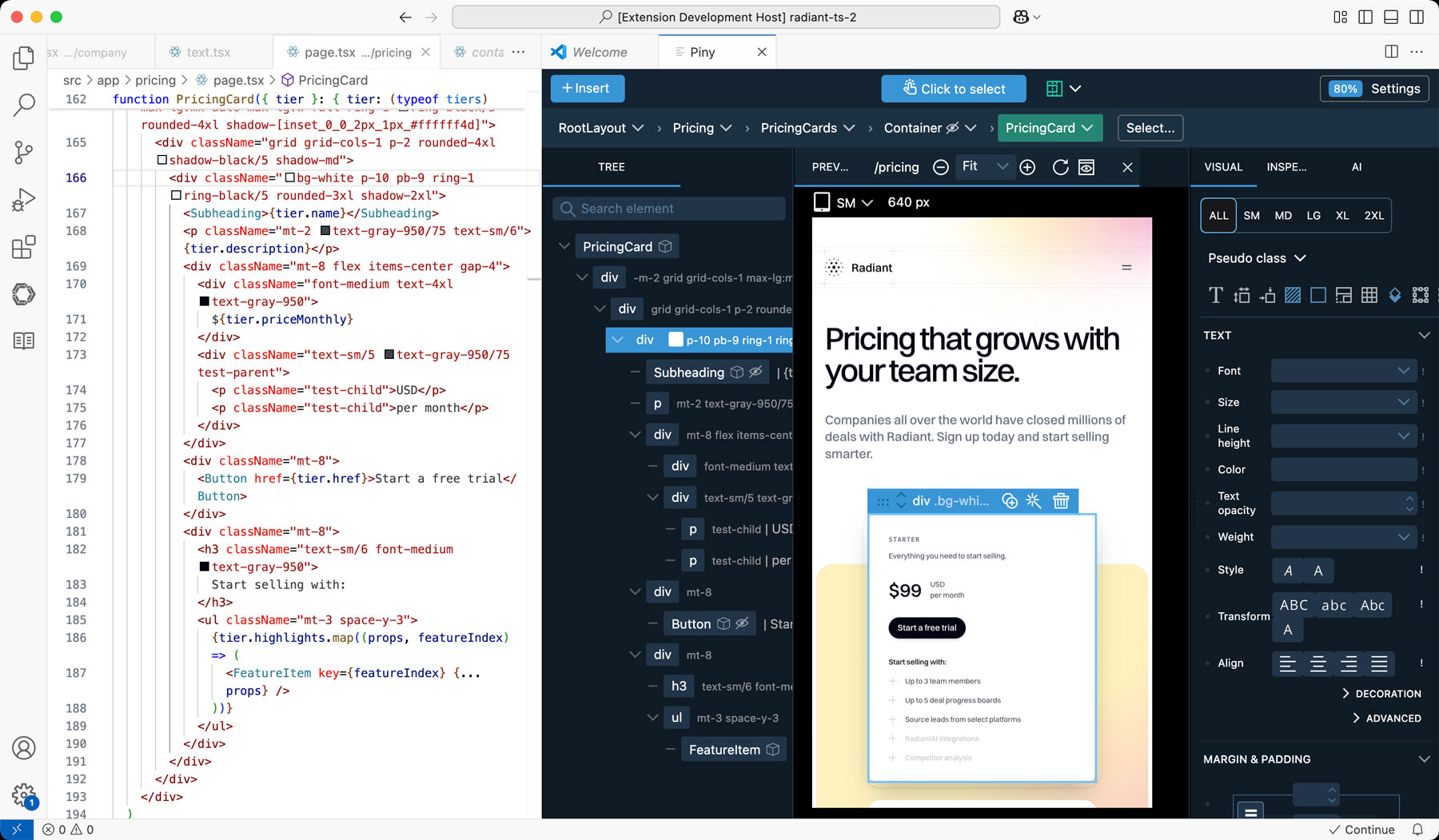
The previous extension. Watch its Getting Started video (15 min).
Legacy features
What the extension does
Visual Tailwind Controls
Click on any element in your code to style it with intuitive visual controls. Changes are immediatelly reflected in the code. The document is automatically saved to trigger the hot reload.
Tailwind Class Inspector
Manage complex Tailwind styles, neatly organized in an editable tree of classes and states.
Edit Tailwind Classes Everywhere
Edit Tailwind classes directly within strings, variables, and even in non-React/Astro code.
Component Navigation
Quickly jump between components – in Piny and in the code. Associate routes with individual components to always get the relevant preview.
AI Powered Drag & Drop
Quickly build your UI visually using AI-assisted drag and drop. Use built-in AI Assistat with your own API provider key. Piny works alongside your favorite AI agent.
Visual Select
Select elements visually and drill down the components directly from the preview.
Edit Multiple Elements at the Same Time
Select multiple elements with CMD/CTRL + Click. Use SHIFT + Click to select a range of elements. Then style them with Visual controls and Inspector.
Navigate the Whole Project
Easily explore and navigate components across your entire project from a single interface.
Import Your Custom Tailwind Theme
Customize visual controls with your own Tailwind configuration including colors, fonts, and spacing.
Legacy getting started
Using the extension
These steps apply to the deprecated extension only. For new projects, get started with the current Piny.
Install the extension
Install Piny directly from the extension marketplace for your preferred IDE.
Open VS Code Marketplace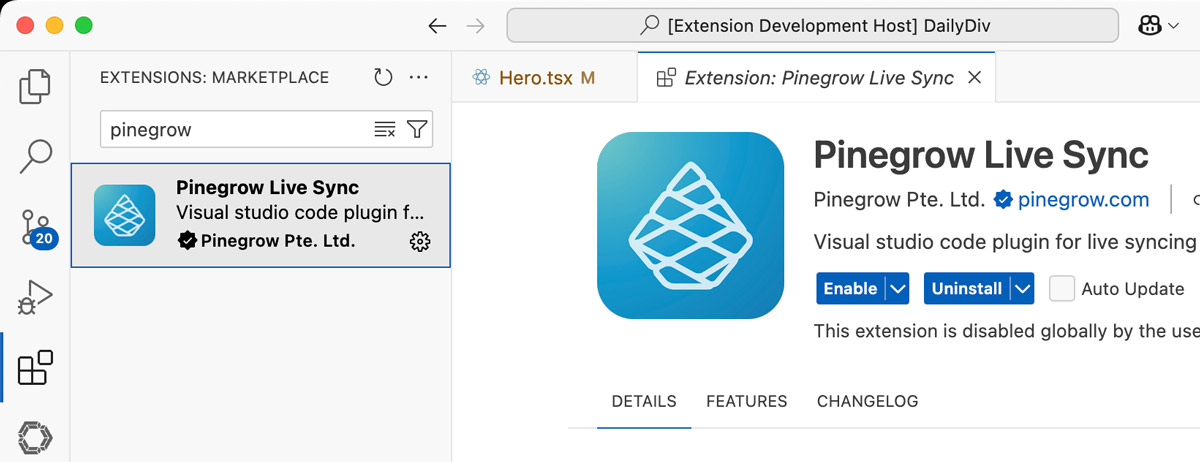
Start Editing
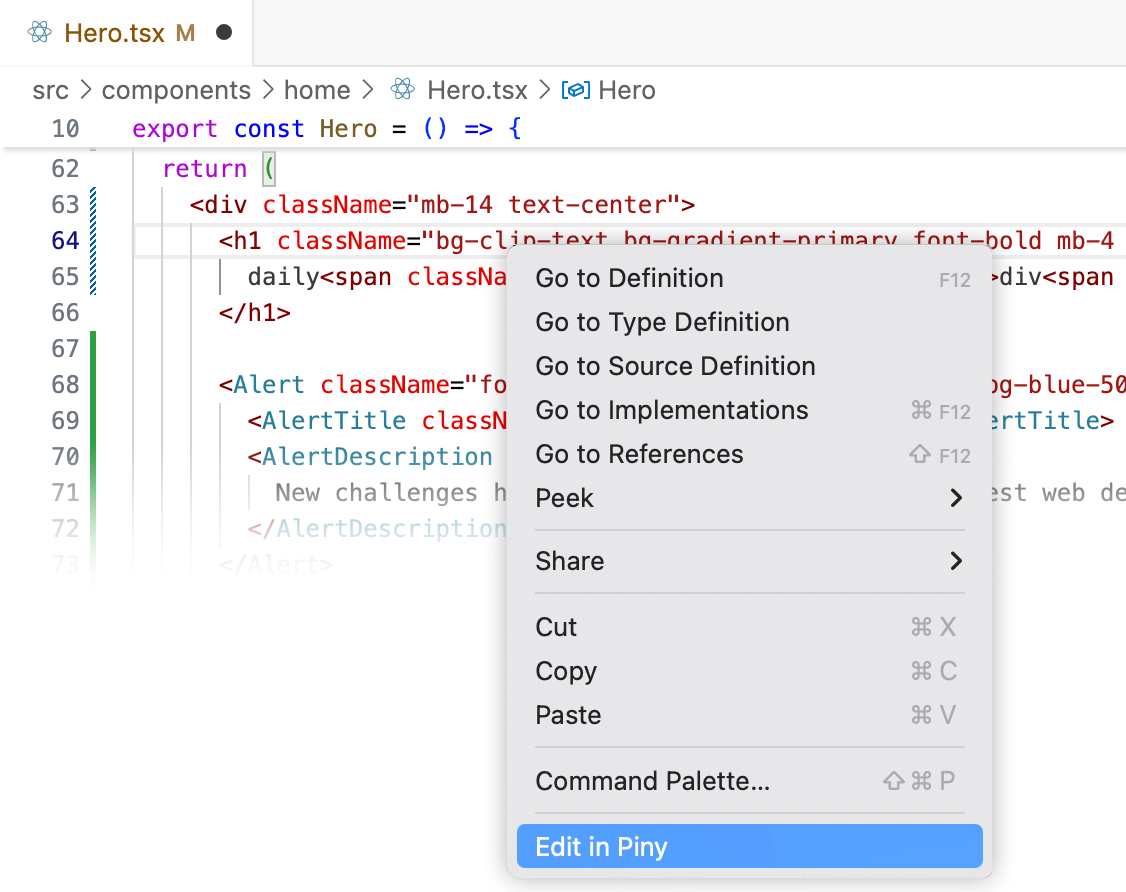
Right-click anywhere in your code and select "Edit in Piny" to begin styling with visual controls.
Watch the Getting Started video